Navigating Roblox groups is a key part of the social gaming experience but sometimes it is time to move on. Whether your interests have shifted the group has become inactive or you simply need to declutter your profile knowing how to gracefully exit a Roblox group is essential for any modern gamer. This comprehensive guide provides step-by-step instructions for leaving groups on both PC and mobile devices ensuring a smooth and hassle-free departure. We address common questions about group ownership item retention and the implications of leaving helping you manage your Roblox social life effectively and stay current with your gaming communities without unnecessary clutter. Learn the quick process to reclaim your feed and focus on what truly matters in your gaming journey right now.
Related gamesHow do I leave a group on Roblox on PC?
To leave a Roblox group on PC, first log into your account on the Roblox website. Navigate to the 'Groups' section from the left menu. Click on the specific group you wish to leave. On the group's page, locate the three dots icon (More Options) usually near the group name, click it, and then select 'Leave Group'. Confirm your decision in the pop-up window to finalize your departure. This process is quick and effective for desktop users.
What are the steps to leave a Roblox group on mobile?
Leaving a Roblox group on mobile is straightforward. Open the Roblox app and tap the 'More' icon (three dots or lines) at the bottom right. Select 'Groups' from the menu. Tap on the group you want to exit. On the group's page, find and tap the three dots icon, then choose 'Leave Group'. Confirm your choice when prompted. This allows mobile gamers to manage their affiliations on the go efficiently.
Can I rejoin a Roblox group after leaving it?
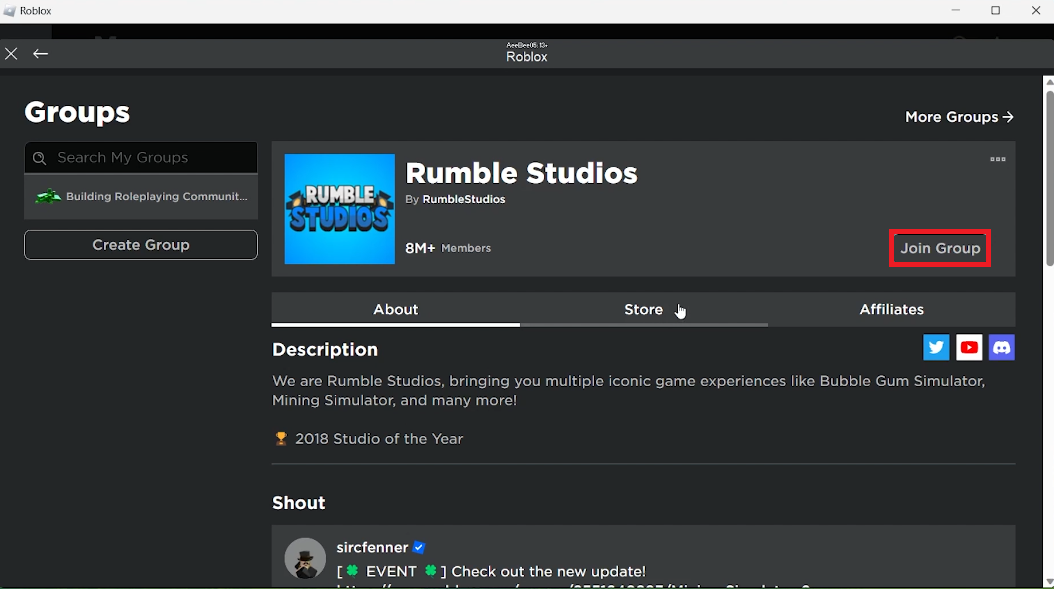
Yes, in most cases, you can rejoin a Roblox group after leaving. If the group is public, you can simply click 'Join Group' again. For private groups, you'll need to send another join request for approval. The only exceptions are if you were specifically banned from the group or if the group has been deleted. Generally, your departure isn't permanent, allowing flexibility in your social interactions.
What happens to my Robux when I leave a group?
Your personal Robux balance is tied to your individual Roblox account, not to any specific group. Therefore, leaving a Roblox group will not cause you to lose any Robux you have earned, purchased, or currently possess. However, any pending group payouts or Robux held within the group's funds that were meant for you will no longer be accessible upon your departure. Always collect group-specific Robux before leaving.
Are group items lost when I leave a Roblox group?
Items you purchased with your own Robux from a group store, like clothing or game passes, are typically tied to your account and remain in your inventory even after leaving the group. However, any in-game assets, perks, or access privileges that are specifically 'group-bound' or only accessible through your group role will be lost upon departure. Personal purchases are generally safe, while group-specific benefits are not.
Is it possible to leave a Roblox group if I am the owner?
Yes, you can leave a Roblox group even if you are the owner, but with an important condition: you must first transfer ownership to another member. Roblox requires an active owner for a group to continue functioning. If you attempt to leave without transferring ownership, the system will prompt you to do so. If you are the sole member or choose not to transfer, the group might become ownerless or eventually disband.
What if a Roblox group is inactive and I want to leave it?
If a Roblox group is inactive, you can still follow the standard steps to leave it on PC or mobile. The process remains the same regardless of the group's activity level. Simply navigate to the group's page, access the options menu (three dots), and select 'Leave Group'. Inactive groups are often a primary reason for players to declutter their group list, and leaving them is straightforward.
In the fast-paced world of online gaming, where communities constantly evolve and personal interests shift, knowing how to manage your digital presence is crucial. For many US gamers, Roblox represents a vibrant hub of creativity, social interaction, and endless play. With 87% of US gamers regularly engaging in their favorite titles, often balancing over 10 hours a week with jobs and family, efficiency in managing their gaming life is paramount. You might have joined a Roblox group full of excitement for a particular game or interest, only to find later that it no longer aligns with your current focus, or perhaps the group chat has become too overwhelming. You're not alone in wanting to declutter your digital space; this month's trends show a significant uptick in players seeking ways to streamline their gaming experience across platforms, especially with mobile gaming continuing its dominance.
This article is your straightforward guide on how to leave a group on Roblox, making sure you can easily navigate the process whether you are on your PC or mobile device. We understand that your time is valuable, and you want practical solutions without the hype. Whether you're looking to simplify your feed, avoid inactive communities, or just make room for new adventures, we've got you covered. Let's dive into the practical steps and answer your most pressing questions about exiting Roblox groups.
Why Do Gamers Choose to Leave Roblox Groups?
Gamers often leave Roblox groups for a variety of valid reasons, reflecting their dynamic gaming interests and real-life commitments. One common reason is a shift in personal gaming preferences; a game that was once a daily obsession might no longer be a priority, rendering its associated groups irrelevant. For busy adults, balancing gaming with jobs and families means optimizing their limited time. Being part of too many inactive or irrelevant groups can clutter their Roblox feed and notifications, making it harder to find content they genuinely enjoy. Social dynamics also play a role; a group's chat might become less engaging, too crowded, or even toxic, pushing members to seek more positive communities. Some might leave to join more active, niche groups, while others simply want to reduce digital noise and simplify their online experience. These motivations are perfectly normal in a gaming ecosystem as vast and evolving as Roblox's.
How to Leave a Roblox Group on PC or Desktop Browser?
Leaving a Roblox group on your PC is a straightforward process designed to be quick and easy. This method applies whether you are using the Roblox website on a desktop computer or a laptop. You will need to be logged into your Roblox account to proceed.
Here are the steps:
- Log In to Roblox: Open your web browser and go to the official Roblox website. Log in using your username and password.
- Navigate to Groups: Once logged in, look for the 'Groups' option in the left-hand navigation menu. Click on it to access your list of joined groups.
- Select the Group: Browse through your list of groups and click on the specific group you wish to leave. This will take you to that group's dedicated page.
- Find the Three Dots Menu: On the group's page, usually located near the group name or description, you'll see a small icon with three horizontal or vertical dots. This is the 'More Options' menu. Click on it.
- Choose 'Leave Group': From the dropdown menu that appears, select 'Leave Group'. A confirmation prompt will usually pop up to ensure you genuinely wish to exit.
- Confirm Your Decision: Read the confirmation message carefully. If you are certain, click 'Leave Group' again or a similar confirmation button. Once confirmed, you will be immediately removed from the group.
This entire process typically takes less than a minute, allowing busy gamers to quickly manage their memberships and get back to playing.
What Are the Steps to Exit a Roblox Group Using a Mobile Device?
Leaving a Roblox group on your mobile device, whether an iOS or Android smartphone or tablet, is just as simple as on a PC, catering to the significant mobile gaming demographic. The Roblox app is designed for intuitive navigation, ensuring a smooth experience.
Follow these steps on your mobile device:
- Open the Roblox App: Launch the Roblox application on your mobile device and ensure you are logged into your account.
- Access the Menu: Tap the 'More' button, which is usually represented by three dots or lines (a hamburger icon) located at the bottom right or top left of the screen, depending on your device and app version.
- Go to Groups: In the menu that appears, find and tap on 'Groups'. This will display a list of all the groups you are currently a member of.
- Select Your Target Group: Scroll through your groups and tap on the name of the group you intend to leave. This will open the group's main page within the app.
- Locate the Options Icon: On the group's page, look for an icon with three dots, often positioned near the group's name or banner. Tap this icon to reveal more options.
- Tap 'Leave Group': From the options presented, select 'Leave Group'. A confirmation pop-up will appear, asking you to verify your choice.
- Confirm Departure: Tap 'Leave' or 'Confirm' on the pop-up to finalize your departure from the group. You will then be successfully removed.
The mobile experience is optimized for quick actions, perfect for gamers who are often on the go or prefer to manage their social interactions from their handheld devices.
Can I Rejoin a Roblox Group After I Have Left It?
Yes, in most cases, you absolutely can rejoin a Roblox group after you have left it. There are typically no permanent bans or restrictions on rejoining unless specific circumstances apply. If the group is public and open for anyone to join, you can simply navigate back to its page and click the 'Join Group' button again. For private groups or those that require approval, you would need to submit another join request, which the group administrator or owner would then review. The only situations where you might not be able to rejoin are if the group owner or an administrator has specifically blacklisted or banned your account from rejoining, or if the group itself has been disbanded. Otherwise, if your reasons for leaving were temporary, or if you simply miss the community, the door to rejoin is usually open.
What Happens to My Robux or Group Items When I Leave a Group?
When you leave a Roblox group, your personal Robux balance remains unaffected. Any Robux you own are tied to your individual Roblox account, not to specific groups. Therefore, leaving a group will not cause you to lose any Robux you have earned or purchased. The situation with group-related items can be a bit more nuanced. If you purchased items (like clothing or game passes) from the group's store using your own Robux, those items are typically tied to your account and will remain in your inventory even after you leave the group. However, any group funds, payouts, or special permissions that were only accessible to you as a member (e.g., specific roles, access to group-only games, or pending group payouts) will cease upon your departure. You will also lose access to any group-specific assets, like group walls or team-specific game benefits. Always consider what assets are truly personal versus group-dependent before making your decision.
Are There Any Consequences for Leaving a Roblox Group?
For the average player, leaving a Roblox group carries very few negative consequences. The primary outcome is simply a loss of access to that group's specific features and community. This includes no longer being able to post on the group wall, participate in group games, receive group payouts, or access any exclusive group items or roles. From a social perspective, your friends within the group will likely see that you've left, but it rarely impacts individual friendships directly unless there were underlying issues. Group owners or administrators might notice your departure, but unless you were a key contributing member, it's generally not a significant event. The system is designed to allow players freedom in managing their affiliations. The only real 'consequence' is that if you were a group owner or the sole remaining administrator, the group might become ownerless or even be deleted, which could be a significant consequence for the group itself. Always ensure someone else is assigned ownership if you are an owner planning to leave a functional group.
What If I Accidentally Left a Group I Wanted to Stay In?
Accidentally leaving a Roblox group can happen to anyone, especially when navigating quickly on a mobile device. Fortunately, as mentioned, rejoining a group is usually a simple process. If you immediately realize your mistake and the group is public, you can go back to the group's page and click 'Join Group' again. You should be able to rejoin without any issues. If the group is private or requires approval, you'll need to send another join request. The group administrators will then review it, just as they would any new request. In rare cases where an administrator might have manually set up a temporary block or if there's a system glitch, you might need to contact the group owner or Roblox Support for assistance, but these are uncommon scenarios. Most of the time, a quick re-join is all it takes to rectify an accidental departure.
How Do I Find a New, More Suitable Roblox Group?
Finding a new Roblox group that better fits your current gaming style and interests is a fantastic way to revitalize your social gaming experience. Roblox's group discovery features are robust. You can use the search bar on the 'Groups' page to look for specific game titles, genres, or keywords like 'roleplay', 'adventure', 'trading', or 'building'. Consider groups related to popular experiences you've been enjoying recently; many top games have official or fan-made groups. Look at the group activity, member count, and group wall discussions to gauge how active and engaging the community is. Many gamers also discover new groups through friends, content creators they follow, or even through recommendations from other players in games. Focusing on groups that have active communities, clear rules, and shared interests will help you find a truly rewarding new social hub. The average gamer seeks communities that enhance their play, not detract from it, making careful selection key.
Tips for Managing Your Roblox Group Memberships Effectively
Effective management of your Roblox group memberships can significantly enhance your overall gaming experience, helping you balance your virtual life with real-world demands. Here are some actionable tips:
- Regularly Review Your Groups: Periodically check your 'Groups' list. Perhaps once a month, take five minutes to scroll through and identify any inactive, irrelevant, or overwhelming groups. This decluttering helps maintain a clean, engaging feed.
- Prioritize Quality Over Quantity: Instead of joining every group you encounter, focus on a few high-quality communities that genuinely align with your current gaming interests and social preferences. Fewer, more active groups often lead to better engagement.
- Utilize Group Descriptions: Before joining, always read the group description and rules. This helps you understand the group's purpose and culture, preventing you from joining a community that might not be a good fit.
- Engage Actively: Once in a group, try to engage with its members. Active participation helps you determine if the community is truly for you and allows you to build connections.
- Leverage Mobile for Quick Checks: With mobile gaming being so prevalent, use your Roblox app for quick checks and minor adjustments to your group list while on a break or commuting.
- Be Mindful of Notifications: Adjust your notification settings for groups. If a group is too chatty but you still want to stay, mute its notifications to prevent disruption.
By implementing these strategies, you ensure that your Roblox group experience remains positive, productive, and perfectly tailored to your evolving gaming journey.
Conclusion
Effectively managing your Roblox group memberships is a simple yet powerful way to optimize your gaming experience, especially for busy adults who juggle gaming with life's other responsibilities. Knowing how to leave a group on Roblox, whether from your PC or mobile device, empowers you to curate your online social spaces, focusing on communities that truly enhance your play and relaxation. The process is quick, designed for minimal hassle, and generally comes with no negative repercussions for your account or items. By regularly reviewing your memberships and prioritizing quality interactions, you ensure your Roblox experience remains fresh, engaging, and perfectly aligned with your current interests. Don't let digital clutter detract from your fun; take control of your groups today!
What's your biggest Roblox challenge right now? Comment below and let's tackle it together!
FAQ Section
What is the fastest way to leave a Roblox group?
The fastest way to leave a Roblox group is to navigate directly to the group's page on either the website or the mobile app, click the three-dot options menu, and select 'Leave Group'. Confirm your choice, and you will be instantly removed. This process is designed for quick, hassle-free departures, perfect for gamers who prioritize efficiency and a clean digital presence.
Can a group owner leave their own Roblox group?
A group owner can leave their own Roblox group, but only after transferring ownership to another member. If an owner attempts to leave without transferring ownership, they will be prompted to assign a new owner. If there are no other members capable of taking ownership, or if the owner is the sole member, the group might become ownerless or disbanded. This ensures the continuity of communities.
Will my friends know if I leave a Roblox group?
Generally, Roblox does not send specific notifications to your friends when you leave a group. However, if your friends actively check the group's member list or your profile's group affiliations, they might notice your absence. For the most part, your departure is a discreet action unless you were a very prominent member or the group is very small and tightly-knit. Socially, it's a minor event.
Do I lose Robux if I leave a group with pending payouts?
Yes, if you leave a Roblox group with pending Robux payouts, you will typically lose access to those funds. Payouts are usually tied to active group membership and roles. Once you are no longer a member, any uncollected Robux from group funds or pending distributions will no longer be accessible to you. It's advisable to collect all pending payouts before leaving a group.
Is there a limit to how many groups I can join on Roblox?
Yes, there is a limit to the number of groups a single Roblox account can join. Currently, a Roblox account can join a maximum of 100 groups. This limit is in place to manage server load and prevent spam, encouraging players to be selective about their group affiliations. If you are at the limit, you must leave an existing group before joining a new one. This ensures a focused community experience.
Quick guide to exiting Roblox groups. Learn steps for desktop and mobile. Understand implications for Robux and items. Find tips for managing memberships. Reclaim your Roblox social feed.
35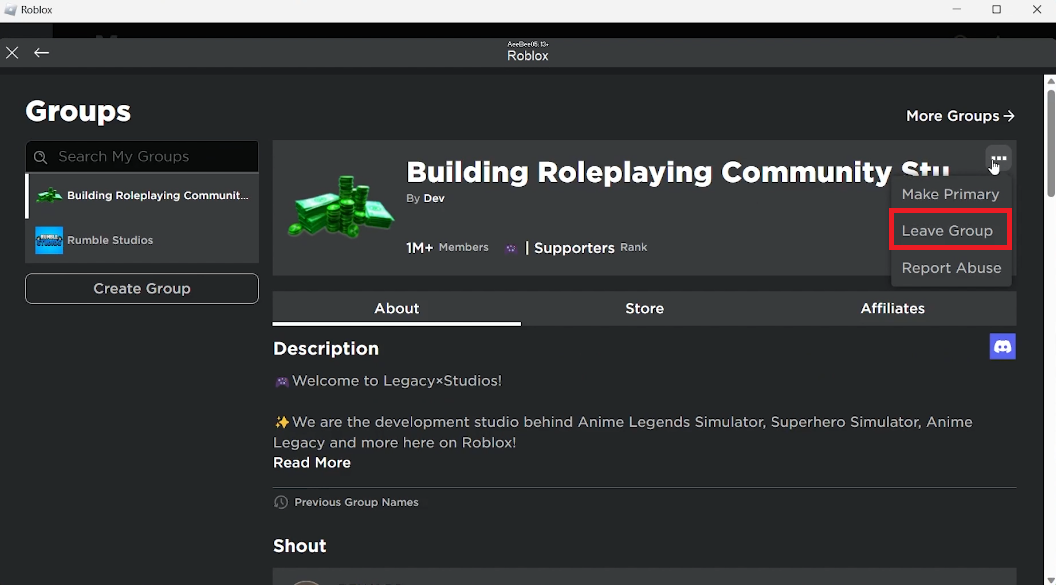


Joining Roblox Groups Your Easy Guide 3 Leave Group. How To Leave A Group In Roblox YouTube . How To Join Leave Groups On Roblox Easy Fix YouTube . How To Delete A Roblox Group On Mobile PC Leave Group . How To Join Or Leave Groups On Roblox YouTube


How To Delete A Group On Roblox YouTube . How To Leave Roblox Chat Group In 2025 Easy Steps YouTube . How To Exit Community Group In Roblox YouTube . How To Join Leave Groups On Roblox 2024 Full Guide YouTube . How To Leave Your Own Group In Roblox Leave Group YouTube


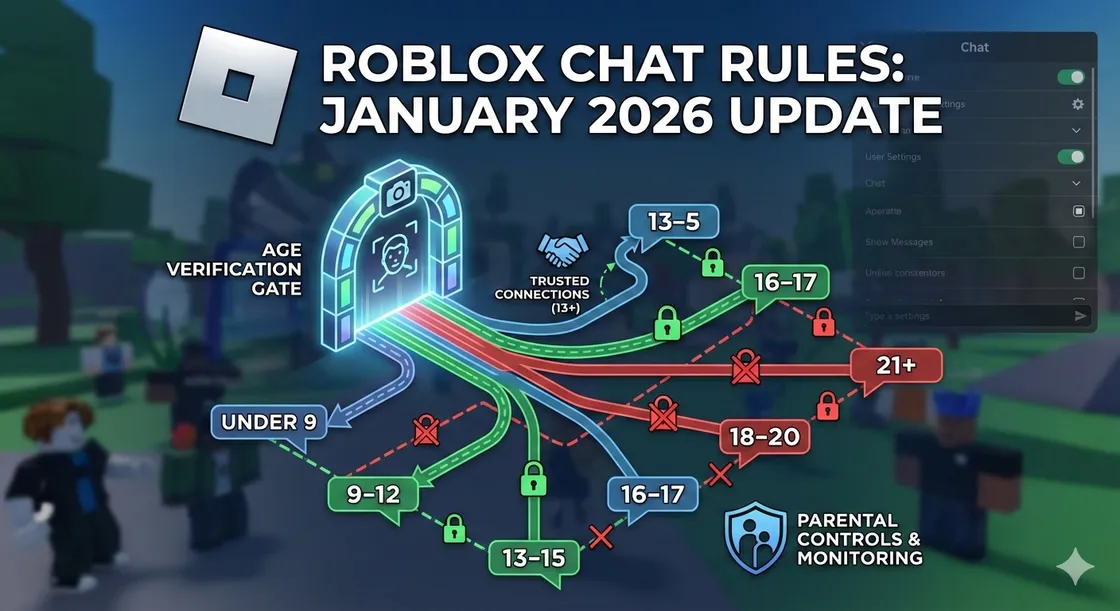
How To Leave Groups In Roblox ROBLOX Tutorial 2025 YouTube . Roblox Join Group . How To Leave Roblox Group Chat 2025 YouTube . How To Join And Leave Groups On Roblox Tutorial Tech How 2 Join Roblox Group. Roblox S New Chat Rules Explained January 2026 Roblox New Chat Rules


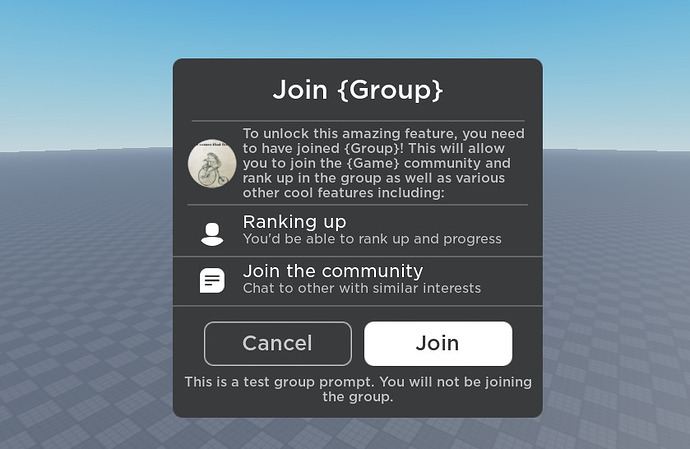

How To Join Leave Groups On Roblox YouTube . How To Create A Group On Roblox 2026 Make Roblox Group YouTube . Group Page Not Displaying Member And Experience Information Roblox . Roblox Join Group 2 690x449 . How To Join A Group In Roblox Full Guide YouTube


How To Join And Leave Roblox Groups Full Guide YouTube . Joining Roblox Groups Your Easy Guide How To Join Leave Groups On Roblox Tutorial . How To Join Roblox Players Seamlessly A 2026 Guide . Roblox People Groups Roblox Join Group NRWMRI . How To Make A Join Group Button In Roblox Studio 2025 In Game


How To Create A Group In Roblox Full Guide YouTube . How To Join Leave Roblox Groups On Mobile Android IOS YouTube . Joining Roblox Groups Your Easy Guide . How Much Does It Cost To Make A Roblox Group 2026 How To Make A Group On Roblox For Free . How To Leave A Group Roblox Deste I



HOW TO LEAVE A GROUP IN ROBLOX 2022 SIMPLE YouTube Hqdefault . How To Leave A Roblox Game On Mobile EASY YouTube . Jak Zmieni Swoje Urodziny Na Robloxie Przewodnik 2026 D401dc66 D505 4529 Aab2. How To Leave Groups On Roblox YouTube . How To Let Players Join Your Group In Game Roblox Studio YouTube